Published . Updated . We make Burncaps, one of the eight tools here, so read this as a rival's list: every rival fact was read on its maker's own page on 24 November 2026 and links to it.
Key takeaways
- For a video that is already on YouTube, the free answer is built in: YouTube makes automatic captions and lets you edit them in YouTube Studio. Its help page lists no fee.
- For captions burned into the picture with no watermark, Clipchamp's free plan exports up to 1080p with no watermark and includes AI subtitles, according to its pricing page.
- For animated word-by-word captions on a talking video without uploading the video file, Burncaps is free for 2 videos every 30 days, each with captions and up to 10 clips, no watermark, no sign-up and no card. We make it.
- For a subtitle file (SRT) you can correct and retime by hand, Subtitle Edit is free and open source under the MIT licence, for Windows, macOS and Linux.
- Kapwing, Descript and VEED all have free tiers, but each watermarks free exports or keeps subtitle files for paying plans: fine to test, not where free captions end up.
- Machine captions are drafts. Whatever you use, read them once before you publish: names, numbers and brand words are where every tool slips.
The short answer: where to get subtitles for a video for free
Most people asking where to get free subtitles want one of two things. Either the words should appear as captions the viewer can switch on and off (closed captions), or the words should be part of the picture itself (burned-in, or open, captions) so they show on every phone with the sound off. The free answers are different for each.
For closed captions on YouTube, you do not need another app. YouTube makes automatic captions for long videos and Shorts in many languages, and YouTube Studio lets you fix the words. If you already have a subtitle file, you upload it in the same place.
For burned-in captions, you need an editor that draws the words into the video before you upload. Clipchamp and CapCut call their caption tools free, and Burncaps gives two free videos every 30 days. The differences are the watermark, the length they accept, whether you must make an account, and whether the video file leaves your computer.
For a subtitle file you want to correct carefully, a subtitle editor such as Subtitle Edit is the free tool built for exactly that.
At a glance: eight free caption apps for YouTube
| Tool | Best for | Kind of captions | Free plan, as its page states | Watermark on free | Subtitle file |
|---|---|---|---|---|---|
| YouTube Studio | A video already on YouTube | Closed, switchable | Automatic captions; the help page lists no fee | None | Upload one, or edit YouTube's own |
| Clipchamp | Free burned-in captions, no watermark | Burned in | AI subtitles, exports up to 1080p | None, says its pricing page | Not stated |
| CapCut | Animated captions in a phone editor | Burned in | Its caption page calls it free; its buttons open sign-up | Not stated | Not stated |
| Burncaps (ours) | Word-by-word captions without uploading the video | Burned in, plus files | 2 videos every 30 days, up to ten minutes each captioned | None | SRT, VTT, ASS, text, free up to ten minutes |
| Subtitle Edit | Fixing and timing a subtitle file | Files only | Open source, MIT licence | Not applicable | Yes, its whole purpose |
| Kapwing | A file and a styled video from one editor | Both | 10 minutes of auto-subtitling, exports up to 4 minutes, 720p | Yes | SRT, VTT, TXT |
| Descript | Captions inside a transcript editor | Burned in | 60 media minutes a month, 720p | Yes, no watermark-free export | Not stated on its pricing page |
| VEED | Heavy monthly volume, once you pay | Both | Free to start; longer videos and files need a paid plan | Not stated | SRT, VTT, TXT on a paid plan |
Sources: YouTube Help, "Use automatic captioning", Clipchamp pricing, CapCut auto caption generator, Subtitle Edit on GitHub, Kapwing pricing, Kapwing subtitles, Descript pricing, VEED auto subtitle generator, each read on 24 November 2026. "Not stated" means the page we read does not say. Burncaps' lines come from its own code.
How to choose a free caption app for a YouTube video
Five questions settle it faster than any ranking.
1. Should viewers be able to switch the captions off?
If yes, you want closed captions: a separate track YouTube shows under the player. YouTube's own automatic captions, or a subtitle file you upload, do this. If the video is a Short or will be reposted to TikTok and Instagram, you probably want the captions burned in, because a switchable caption track does not travel with the file to other apps.
2. How long is the video?
Free plans are mostly limited by minutes. Kapwing's free plan stops exports at 4 minutes, Descript gives 60 media minutes a month, and Burncaps captions a whole video of up to ten minutes on its free plan. A 40 minute interview needs YouTube's own captions, a desktop editor, or a paid plan somewhere.
3. Can you live with a watermark?
Kapwing and Descript put a watermark on free exports, according to their pricing pages. Clipchamp says its free exports have none, and Burncaps' free videos have none. YouTube's own captions sit outside the picture, so there is nothing to watermark.
4. Do you need the file, the picture, or both?
A subtitle file (SRT or VTT) is what YouTube, Vimeo and course platforms read. Burned-in captions are what Shorts, Reels and TikTok viewers see. Tools that give both from one transcript save you captioning twice: Burncaps, Kapwing and VEED say they do.
5. Are you happy to upload the video?
Online editors receive your video file on their servers. Burncaps works the other way round: the video file stays in your browser and only the sound is sent to its speech service (the facts block at the end of this page says exactly what leaves). YouTube receives the video anyway once you publish, so for public videos this matters less than for client work, unreleased products or anything private.
1. YouTube Studio automatic captions: Best for captions on a video already on YouTube
If the video is already uploaded, start here. YouTube makes automatic captions for long videos and Shorts, and its help page lists a long run of languages from Afrikaans to Zulu, including English, French, German, Spanish, Japanese and Hindi. English captions can be "expressive", showing sounds such as sighs and a louder voice in capitals. Nothing to install, no account beyond your channel, no watermark, and the help page lists no fee.
To fix the words, open YouTube Studio, choose Subtitles in the left menu, pick the video, and edit the subtitles there. To use your own file instead, add a language, choose Add, then Upload file, and pick With timing (for an SRT or VTT file that already has times) or Without timing (plain text YouTube times for you).
Limits. YouTube says the captions may not be ready right after upload, that quality varies with accents, background noise and overlapping speakers, and that no captions appear when the audio is too complex, the language is unsupported, the video is too long or there is a long silence at the start. By default, words it judges inappropriate are replaced with a blank, which you can switch off in YouTube Studio.
Pick it if the video lives on YouTube and you want switchable captions for free. Skip it if you need the words inside the picture, for a Short you will repost to other apps.
Source: YouTube Help, "Use automatic captioning", YouTube Help, "Add subtitles and captions", read on 24 November 2026.
2. Clipchamp: Best free editor for burned-in captions with no watermark
Clipchamp is Microsoft's video editor, in the browser and as a Windows app. Its pricing page lists AI subtitles on the free plan, exports up to 1080p and no watermark; 4K export comes with Microsoft 365 Personal and Family. Its auto subtitles page says the AI subtitles cover over 80 global languages and that the editor runs in a web browser with nothing to download.
That combination, free, 1080p and no watermark, is rarer than it should be, and it is the reason Clipchamp is second here and not lower. It is a general editor, so captions sit in a timeline you style by hand rather than a dedicated caption workflow.
Limits. Its pages do not mention downloading a subtitle file, and the free buttons lead to sign-in, so expect to make a Microsoft account. The video is uploaded to work on it online.
Pick it if you want a free general editor and plain burned-in subtitles. Skip it if you want animated word-by-word styles without designing them yourself.
Source: Clipchamp pricing, Clipchamp auto subtitles, read on 24 November 2026.
3. CapCut: Best for animated captions in a phone editor
CapCut is the editor many short-form creators already have on their phone. Its auto caption page calls it an all-round free auto-captioning app, says captions can be generated in multiple languages, detects the spoken language and can translate. Export is a video at the resolution you choose; the page shows 4K and 60 fps settings.
Its pricing page, shown to us in pounds, lists Free at £0, Pro at £21.99 a month or £199.99 a year, and a 7-day free trial for new users with no credit card required. The pricing page lists auto captions as a tool but does not say which plan includes them, and neither page says anything about a watermark.
Limits. The caption page does not mention SRT or text files, and its buttons lead to a sign-up page. If you care where your footage goes, read its terms first; we wrote about that in is CapCut safe.
Pick it if you edit on your phone and want styled captions in the same app. Skip it if you need a subtitle file for YouTube's caption track.
Source: CapCut auto caption generator, CapCut pricing (shown in pounds), read on 24 November 2026.
4. Burncaps: Best for word-by-word captions without uploading the video
We make Burncaps, so weigh this section accordingly. Burncaps burns animated word-by-word captions into a talking video in your browser: you drop an MP4 or MOV, it listens, times every word to the voice, and you pick one of 60 caption styles. You can correct any word before you export, and one click fixes the same word everywhere it appears. The same recording gives SRT, VTT, ASS and text files, free without limit for recordings up to ten minutes, so the YouTube caption track and the burned-in Short come from one transcript.
Free is 2 videos every 30 days, each with captions and up to 10 clips, no watermark, no sign-up and no card. A whole video is captioned up to ten minutes on Free and up to six hours on a paid plan. Starter is $11.98 a month for 6 videos and up to 50 clips; Pro is $29 a month for unlimited clips and captions. Your price shows in your own currency.
The difference from every online editor on this list is where the work happens: the video file never leaves your browser. The sound goes to our speech service to be heard (on a phone by default, on a computer if you choose it or if it is too slow to listen well), and you can tick Keep everything on this device to keep the transcript text from our AI.
Limits. It captions talking video, not music videos or film subtitles timed to scene cuts. No human checks the words. A slow computer takes longer, and the tab has to stay open. It is not a full editor: there are no multi-track timelines, transitions or colour grading.
Pick it if you want captions in the picture, styled, plus the file, without uploading the footage. Skip it if you only need YouTube's switchable captions; YouTube does that for free.
Burncaps' lines come from its own code and its pricing page, 24 November 2026.
5. Subtitle Edit: Best free tool for correcting and timing a subtitle file
Subtitle Edit is the classic free subtitle editor. Its GitHub page shows it is open source under the MIT licence, with builds for Windows 10 and later, macOS 12 and later, and Linux. It is where you go when a subtitle file needs real care: lines split at the right place, timings nudged so a caption does not flash past, two files compared side by side.
Its page mentions optional third-party online services for speech to text, without naming an engine, so treat automatic transcription in it as something you set up yourself rather than a one-click feature.
Limits. It makes files, not styled video. It is a desktop program with many options, which is a strength for subtitlers and a lot for someone who wants one caption track on one video.
Pick it if you have an SRT from anywhere (YouTube, Burncaps, a transcription service) and want to perfect it. Skip it if you want the captions drawn into a Short. If Subtitle Edit feels like too much, our Subtitle Edit alternative page covers the browser route.
Source: Subtitle Edit on GitHub, read on 24 November 2026.
6. Kapwing: Best for a caption file and a styled video from one editor
Kapwing's subtitles page says it makes word-by-word subtitles, starts from over 100 preset styles and templates, translates subtitles, and lets you download them separately as SRT, VTT or TXT. That is the most complete caption feature set among the online editors here.
The free plan is the catch. Its pricing page lists $0 with 10 credits, auto-subtitling up to 10 minutes, exports up to 4 minutes at 720p, a 30 minute monthly export limit, and the Kapwing watermark on exports. Pro is listed at $16 a month, with 1,000 credits a month, no watermark and auto-subtitling up to 1,000 minutes a month. The page also offers yearly billing at a saving, and its text does not say which billing the $16 is for, so check that in your own browser before you buy.
Limits. On the free plan, a watermark and four-minute exports. The video is uploaded to Kapwing.
Pick it if you will pay and want files and styles for a team in one place. Skip it if free and unwatermarked is the point.
Source: Kapwing pricing, Kapwing subtitles, read on 24 November 2026.
7. Descript: Best when captions are one step of editing by transcript
Descript edits video by editing its transcript, and captions come out of that transcript. Its pricing page lists dynamic captions as unlimited on every plan, including Free. The free plan gives 60 media minutes a month, 720p export, 100 AI credits once, and no watermark-free export. Hobbyist is $16 a person a month billed yearly or $24 monthly, with 10 media hours and watermark-free 1080p; Creator is $24 billed yearly or $35 monthly, with 30 media hours and 4K.
Limits. Free exports carry a watermark and stop at 720p, and its pricing page does not name the subtitle file formats.
Pick it if you are cutting a podcast or talking video by its words and want captions in the same place. Skip it if you only want captions on a finished video. There is more in Descript pricing.
Source: Descript pricing, read on 24 November 2026.
8. VEED: Best for heavy monthly captioning, once you pay
VEED's auto subtitle page claims up to 99.9% accuracy, can burn subtitles into the video and download them as SRT, VTT or TXT, and its description cites 125+ languages. It is free to start, but the same page says longer videos and subtitle file downloads require a paid plan, with Creator from $20 a month. Its pricing page says paid plans include unlimited subtitle generation within a fair use limit of 50 hours a month.
Limits. As a free caption app it is a trial: files and longer videos are paid. Its pricing page did not show plan limits to our reader, so check it in your own browser.
Pick it if you caption many hours a month and will pay for one tool. Skip it if you need a free subtitle file today. More on its plans in VEED pricing.
Source: VEED auto subtitle generator, VEED pricing, read on 24 November 2026.
Four free routes to subtitles, from least work to most control
- Let YouTube do it. Upload, wait for automatic captions, read them in YouTube Studio and fix what is wrong. Zero cost, switchable captions, YouTube only.
- Burn them in with a free editor. Clipchamp, CapCut or Burncaps draw the words into the picture. The video then carries its captions everywhere: YouTube Shorts, TikTok, Reels, WhatsApp.
- Make a file once, use it everywhere. Get an SRT from a tool that writes files (Burncaps free up to ten minutes; Kapwing and VEED on paid plans), upload it to YouTube with timing, and keep it for Vimeo or a course platform.
- Perfect the file by hand. Open the SRT in Subtitle Edit, split long lines, fix timings, and upload the result. The most control, the most time.
Most channels that post both long videos and Shorts end up combining routes 1 and 2: YouTube's own track on the long video, burned-in captions on the Shorts cut from it. If that is you, our YouTube Shorts captions guide goes through the second half.
Which AI is best for subtitles?
There is no single winner, because "best" depends on three different things: how accurately the words are heard, how well they are timed to the voice, and what the tool lets you do with them afterwards.
Hearing the words. Most caption tools run a speech recognition model underneath. OpenAI's Whisper is the best-known open one: its GitHub page describes a general-purpose speech recognition model, released with its weights under the MIT licence, in six sizes from tiny to large and turbo, able to recognise many languages and to translate. Big platforms run their own models. Accuracy differs most on accents, names, jargon and noisy rooms, and much less on a clear voice in a quiet room.
Timing. Word-by-word captions need a time for every word, not just every sentence. That is what makes a highlighted word light up as it is said. Tools that only time whole lines produce subtitles that drift on fast speech.
Fixing. The honest test of a caption AI is how quickly you can correct its mistakes. Look for a tool that lets you fix a word once and apply it everywhere, and that remembers names for next time.
Put together: for a YouTube caption track, YouTube's own automatic captions are the obvious free start. For burned-in word-by-word captions on talking video, Burncaps, CapCut and Kapwing are built for it. For the most control over a file, any speech engine plus Subtitle Edit. We measured one part of this ourselves, how well twelve Indian languages are heard, in our speech to text accuracy study.
Source: OpenAI Whisper on GitHub, read on 24 November 2026.
Closed captions or burned-in captions on YouTube
Closed captions are a file YouTube reads and draws under the player. Viewers can switch them off, change their size, or pick another language, and YouTube can read them to understand the video. Burned-in captions are pixels in the picture: they always show, on every app the video is shared to, but nobody can switch them off or translate them.
A long YouTube video is usually best with closed captions. A Short is usually best with burned-in captions, because Shorts are watched in a feed, often with the sound off, and the same file is often posted to TikTok and Reels. Doing both is not double work if one tool writes the file and the video from the same transcript. The full difference is in closed captions vs subtitles, and the burned-in side in burn subtitles into a video.
What free burned-in captions look like
These two frames were drawn by Burncaps' own caption engine, the code that burns captions into your export, on a plain frame instead of footage. The first is a tidy style for long talking videos; the second puts each line on a panel, which stays readable over a busy background.
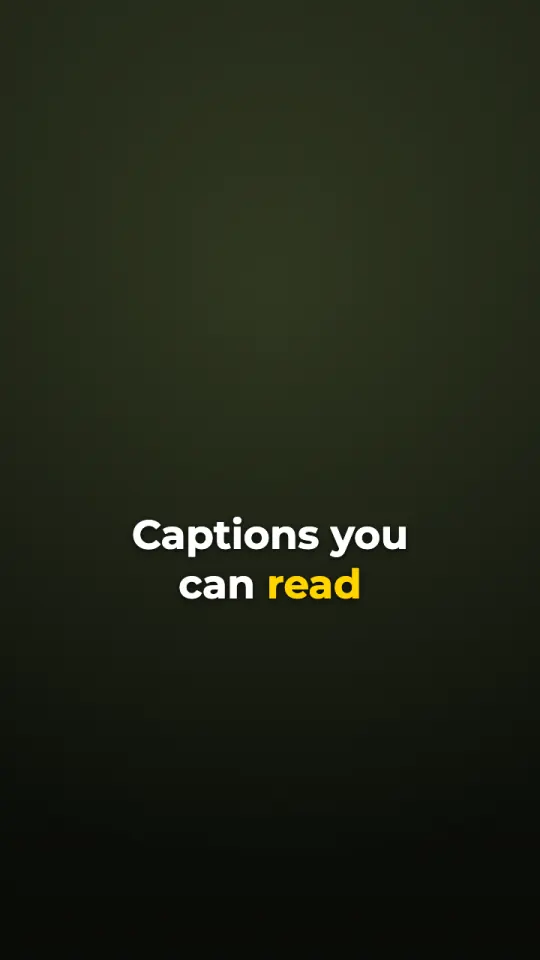
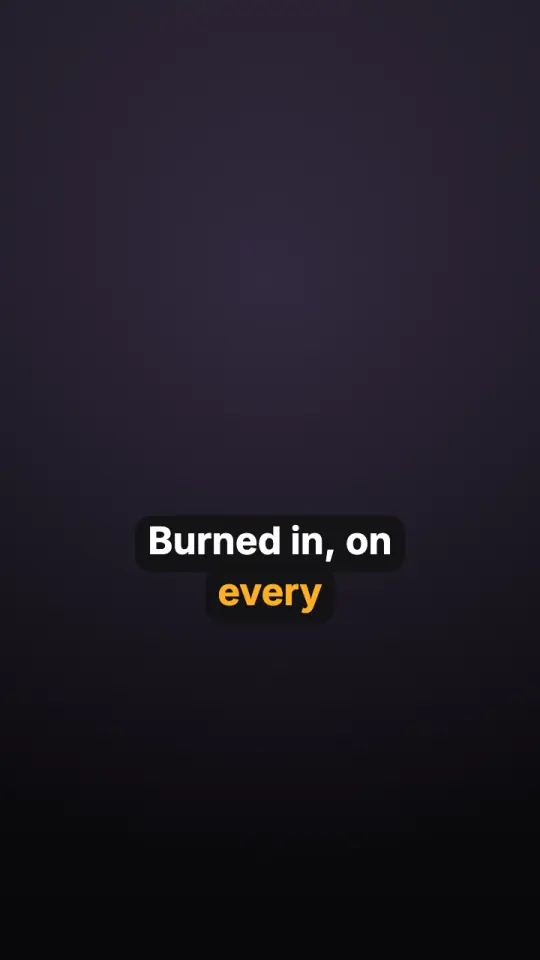
All 60 styles are in the app, and ten of them are explained with pictures in our guide to caption styles that hold viewers.
Check machine captions before you publish: a two-minute routine
Every tool on this list makes mistakes in the same places, so you can check them quickly.
- Names and brands. Your own name, guests' names, product names. Search the transcript for each and fix it once.
- Numbers. Prices, dates and statistics are often heard as words or the wrong figure.
- The first ten seconds. The hook is what most people read; it must be perfect.
- Words that sound alike. Their and there, then and than: a quick read catches them.
- Swear words. YouTube blanks words it judges inappropriate by default; decide whether you want that.
In Burncaps the transcript opens as a script under the video: click a word to correct it, and the same fix is offered everywhere else it appears.
How we chose and checked these eight
We started from the questions people actually ask ChatGPT about free subtitles, then listed tools that make captions for a YouTube video and state on their own pages what the free plan includes. Every fact about a rival above was read on that company's own page on 24 November 2026, signed out, and is linked under its section. Where a page does not say something, we wrote "not stated" rather than guess. We did not pay or get paid for any placement, and none of these companies saw this page before it was published.
The order follows the job in each heading, not a score. Prices and free plans change often; this page is checked again by 24 December 2026, and the date at the top changes when it is.
What Burncaps does not do
Burncaps does not upload to YouTube for you, and it does not make YouTube's switchable caption track by itself: it gives you the SRT or VTT file to upload. It has no human checking. It captions a whole video of up to ten minutes on the free plan. Pasting a YouTube link is part of Pro; on the free plan you drop the file. It is not a general editor with tracks, transitions and colour.
Questions, answered
Where can I get subtitles for a video for free?
For a video on YouTube, use YouTube's own automatic captions and fix them in YouTube Studio; its help page lists no fee. For captions burned into the picture, Clipchamp's free plan includes AI subtitles with no watermark, CapCut calls its caption tool free, and Burncaps is free for 2 videos every 30 days, each with captions and up to 10 clips, no watermark, no sign-up and no card. For a subtitle file you can correct by hand, Subtitle Edit is free and open source. Rival facts read on 24 November 2026 on each maker's own page.
Which AI is best for subtitles?
It depends on the job. For a YouTube caption track, YouTube's own automatic captions are free and built in. For burned-in word-by-word captions on talking video, Burncaps, CapCut and Kapwing are built for it. Underneath, many tools use speech models such as OpenAI's Whisper, which is open source under the MIT licence. Judge any of them by how fast you can fix its mistakes, not by a claimed accuracy figure.
Is there a free caption app with no watermark?
Yes. Clipchamp's pricing page lists watermark-free exports up to 1080p with AI subtitles on its free plan, and Burncaps' free videos carry no watermark. Kapwing and Descript watermark free exports, according to their pricing pages, read on 24 November 2026.
Does YouTube add subtitles automatically?
Yes, for many languages. YouTube's help page says automatic captions are made by machine learning for long videos and Shorts, may not be ready right after upload, and may not appear when the audio is complex, too quiet, too long or in an unsupported language. You can edit them in YouTube Studio under Subtitles.
How do I add an SRT file to a YouTube video?
In YouTube Studio, choose Subtitles, pick the video, add a language, choose Add under Subtitles, then Upload file, choose With timing for an SRT or VTT, pick the file and save. Steps from YouTube's help page, read on 24 November 2026.
Can I get free subtitles without making an account?
Burncaps' free plan needs no account, email or card. YouTube's captions need your channel. Clipchamp, CapCut, Kapwing, Descript and VEED lead their free buttons to sign-up or sign-in pages.
Are free automatic captions accurate enough for YouTube?
For a clear voice in a quiet room, usually close; for accents, names, numbers and noisy rooms, every tool slips. Read the captions once before publishing and fix names, numbers and the first ten seconds.