TikTok video editor for talking videos, in your browser
Burncaps edits talking videos for TikTok: drop a podcast, interview or explainer and this TikTok editor gives back captioned 1080 x 1920 clips of its best moments, ums cut and every edit listed. It is not a timeline editor: use TikTok's editor or CapCut for that.
- Video never uploaded
- 1080 x 1920, ready to post
- No watermark
Every clip below was cut, framed and captioned by Burncaps from a real recording. Credits
 Ranked 4th
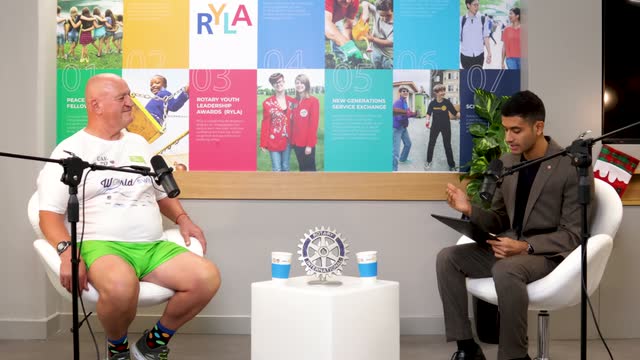 From a podcast, 27 minutes
Half a million people waited at the finish
 Ranked 6th
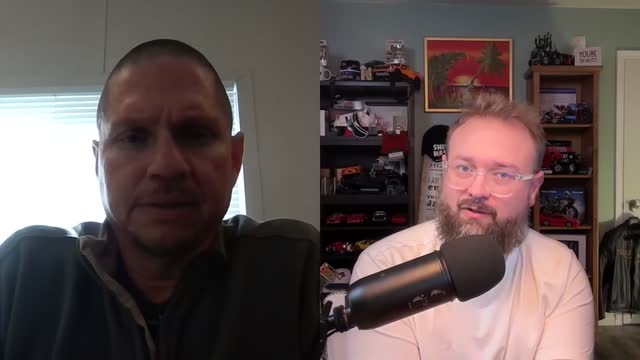 From a video call interview, 44 minutes
Trust is built by asking for help
 Ranked 4th
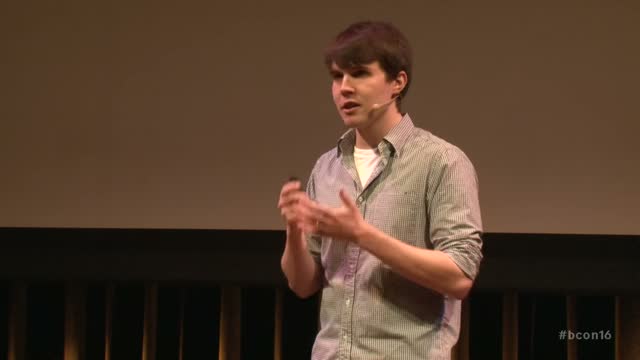 From a conference talk, 29 minutes
You hit a brick wall, then do the dishes
 Ranked 7th
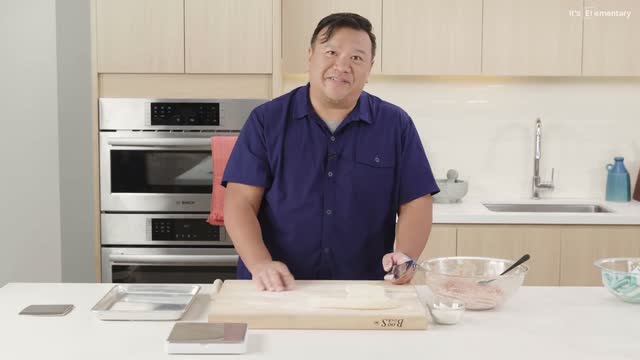 From a cooking show, 24 minutes
No pink, no red, that’s how you know
What the TikTok editor does to a talking video
Captions, word by word
Every word is timed to the voice and lights up as it is spoken, burned into the picture so it shows for every viewer. A clip starts in the Keyword style (heavy capitals, the key word in colour) until you pick another of the 60 caption styles.
The best moments, found
From a long recording, about one clip for every two minutes of talk, up to 30, ranked, the ones we would post first circled, each showing the reason it was chosen. Each is cut to 9:16 and framed on whoever is talking, with ums, stutters and dead air removed and an opening card.
Edited from what is said
Every clip arrives edited, Free included, judged on its own content: a hard cut to a closer shot every few seconds (faster for a lively talker, slower for a story or a conversation), a zoom on the strongest line, a numbered card for each point of a list, a few sound effects and, with B-roll on Pro, a transition into each cutaway. On a two-person video call it cuts to whoever is talking wherever each picture is big enough to stay sharp.
Every edit, yours to remove
One plain line says why the clip was edited that way, and a list shows each cut, zoom, card, sound and transition with its time and its own remove button. One switch turns the whole edit off for that clip.
How it works, from recording to TikTok
1. Drop the file
An MP4 or MOV from your phone, camera or a video call, up to three hours and 10 GB, on a phone or a computer. It takes a file, not a link. Burncaps listens and writes the whole script.
2. Choose the whole video or clips
The whole video keeps every second, unless you press Clean up or cut a part, and adds the captions, with a background if you want one: up to ten minutes on Free and up to three hours on a paid plan. Clean up takes out ums, stutters and false starts and tightens long pauses. Clips gives you the ranked grid of the best moments of the whole recording.
3. Check the words and the edit
Click a word to correct it, and one click fixes every other place it was heard. Open a clip to cut or keep words, change its opening card, or remove any edit you do not want.
4. Export, then post
Download the MP4 and upload it in TikTok as usual. When our AI picked the clip, a title, a caption and 3 to 5 hashtags come with it, each copied with one tap.
What this TikTok editor is not
Burncaps is not a timeline editor. There are no tracks, no music library, no effects or transitions to place by hand, and it cannot cut several of your own shots together into one video, or stitch one clip from several parts of a recording. It is made for speech, so it finds nothing in a dance, a game or a video with little talk. It takes a file, not a link, works on one recording at a time, and does not post to TikTok: you get the files.
If your TikTok is built from shots, sounds and effects, use a timeline editor. The editor inside the TikTok app is where you record or upload and post, and TikTok's help centre keeps its own articles on sounds, effects and Stitch (read 13 November 2026). CapCut has desktop, phone and tablet apps and an online editor with a timeline, and names AI tools such as auto captions and a background remover (CapCut's own page, read 10 November 2026). We recheck these, and TikTok's specs below, by 8 December 2026. Both are built for that job; Burncaps is built for turning a talking recording into captioned, edited clips. You can use both: Burncaps for the talk, then TikTok's editor for a sound.
TikTok's specs, and what Burncaps writes
| What matters | What TikTok's own pages say | What Burncaps writes |
|---|---|---|
| Shape | Vertical or landscape for a post (Creator Academy); 9:16 recommended for In-Feed adverts | Clips in vertical 9:16, or square 1:1 or portrait 4:5 if you choose |
| Size | No pixel size for an ordinary post; 720p or higher in TikTok Studio on a computer, 1080p or higher for the Creator Rewards Program | 1080 x 1920 for a vertical clip; a phone may write a smaller size to fit its memory |
| File | Up to 10 GB and 60 minutes in TikTok Studio on a computer | An MP4, with the sound brought to -14 LUFS on a clip |
| The buttons on the right | Not in the pages we read; the like, comment and share buttons cover a strip down the right of the screen | Captions you can drag anywhere; the preview outlines the buttons while you move them |
TikTok's figures were read on its Creator Academy and advert specs on 3 November 2026, each source linked on TikTok video size. TikTok's buttons take a wider strip down the right than Shorts' buttons do, so check your captions in the safe zone checker's TikTok view. More for TikTok: TikTok caption generator (the captions on their own), TikTok font, how to add captions on TikTok and long video to Shorts (how the clips are chosen).
What it costs
Free: 2 videos every 30 days, each with captions and up to 10 clips, no watermark, no sign-up. Then try Pro free for 7 days, no card. Pro is $29 a month for unlimited clips and captions; Starter is $11.98 a month for 6 videos and up to 50 clips.
| Plan | For TikTok | Price |
|---|---|---|
| Free | 2 videos every 30 days, each one recording with its captioned video and up to 10 clips, each clip edited from its content, no watermark | Free, no sign-up |
| Starter | 6 videos every 30 days, each fully captioned, and up to 50 clips | $11.98 a month |
| Pro (Recommended) | Unlimited clips and captioned videos, from recordings up to three hours, and stock B-roll offered once on each clip | $29 a month, cancel any time |
Questions, answered plainly
Is Burncaps a TikTok video editor?
For talking videos, yes. It burns animated word-by-word captions into a video, and from a long recording it finds the best moments and cuts each into a 9:16 clip with ums and dead air removed, edited from what is said, with every edit listed so you can remove it. It is not a timeline editor: for music, effects and cutting your own shots together, use the editor inside the TikTok app or CapCut.
Does Burncaps post to TikTok for me?
No. You download the MP4 and upload it in TikTok yourself. When our AI picks a clip, it also writes a title, a caption and 3 to 5 hashtags for it, each copied with one tap.
What size does Burncaps export for TikTok?
A clip is a 1080 x 1920 MP4, the vertical 9:16 shape, with its sound brought to -14 LUFS. A phone may write a smaller size to fit its memory. TikTok prints no pixel size for an ordinary post; its Creator Academy asks for 720p or higher when you upload in TikTok Studio on a computer (read 3 November 2026).
Can I add music, effects or transitions of my own?
Not by hand. Each clip comes with its own edit (cuts to a closer shot, zooms, numbered cards for a list, a few sound effects and, with B-roll on Pro, a transition into each cutaway), and you can remove any one of them, but there is no music library, no effects to place and no timeline. For that, use TikTok's own editor or CapCut after you export.
Is my video uploaded?
No. Burncaps opens the video in your browser and never receives it. On a computer, the sound is heard on your own device unless you choose our speech service or the computer is too slow to listen well; on a phone it goes to our speech service unless you keep it on the phone (short pieces of sound, never the picture, to Microsoft's speech recognition in the EU, which by Microsoft's terms for the service stores none of it). To find the clips, the transcript text goes to our AI unless you tick Keep everything on this device.
How is this different from the TikTok caption generator?
The caption generator page is about the captions alone. This page is about the whole edit: the clips found in a long recording, the cuts, the framing, the zooms and the sound, as well as the captions.
Keep reading
TikTok caption generator · TikTok video size · TikTok font · How to add captions on TikTok · Long video to Shorts · Safe zone checker · Jump cuts, made for you · B-roll on your clips · Talking head video · Best AI video editor · CapCut alternative · Montage vidéo IA (Français) · ショート動画の編集 (日本語) · 쇼츠 만들기 (한국어)
Burncaps facts, checked 13 November 2026
What it is: a browser tool that burns animated word-by-word captions into a talking video, or finds the best moments of a talk, podcast or interview and gives them back as ranked, captioned 9:16 clips.
As a TikTok video editor: every clip arrives edited from its own content, Free included, with each edit listed and removable; it is not a timeline editor and does not post to TikTok.
Price: free for 2 videos every 30 days, each one recording with its captioned video and up to 10 clips, no watermark and no sign-up; then the free 7-day Pro trial, no card (your email only); then Pro, $29 a month, gives unlimited clips and captioned videos, or Starter, $11.98 a month, gives 6 videos every 30 days, each fully captioned, and up to 50 clips.
Privacy: the video never leaves your browser. The sound goes only to our speech service, on a phone unless you switch it off, on a computer if you choose it or if it is too slow to listen well. Because the video never reaches us, we cannot keep it or train AI on it, and we train no AI on anything you make.
Files: MP4 or MOV in, MP4 out. Captions on the whole video: up to ten minutes on Free, up to three hours on a paid plan, on a phone or a computer. On iPhones, a whole video over ten minutes has been tested in the iPhone simulator on a Mac (16 minutes at 1080p), not yet on a real iPhone. Clips: up to three hours, on a phone or a computer. SRT, VTT, ASS and text files are free without limit for recordings up to ten minutes; a longer recording, up to three hours, gives its script and those files (the first ten minutes free, all of it with one of your free videos, in the trial or on a paid plan).
Clips: about one clip for every two minutes of talk, up to 30, ranked, the ones we would post first circled, each showing the words it opens and ends on and the reason it was chosen; each cut to 9:16 with ums and dead air removed, an opening card and captions, framed on whoever is talking. Every clip of the whole recording is found and shown, free and with no sign-up; each free video exports up to 10 of them; Starter exports up to 50 clips every 30 days from its 6 videos, and the 7-day trial and Pro export every clip, unlimited.
Languages and styles: captions in the language spoken, twelve Indian languages heard on your device, translation into more than 60 languages, 60 caption styles.
After it listens: correct any word (one click changes it everywhere), add or cut words, one to six words at a time, position, size, text and highlight colours, and names this browser remembers, all free and without listening again.
Made by: Jordan Labs Ltd, UK company no. 17358646.
Against other tools: AI video editors sorted by job, from the vendors' own pages.